


Microsoft Copilot
4.729.95K Reviews
App Specs
- Version
- 30.0.440120001
- Updated On
- License
- Free
- Downloads
- 50,000,000+
- Developer
- Microsoft Corporation
- Categories
- Productivity
- Platform
- Android, iOS
Screenshots







 Analysis by AppCompare
I judge an AI assistant by what happens after the novelty wears off: can it help me turn a vague request into something useful, and can I tell when I need to check its work? That is the lens I bring to Microsoft Copilot. I see it as a handy place to ask questions, explore ideas, and get a first draft moving, rather than a magic button that finishes every task correctly. Its value depends on how clearly I ask and how carefully I review what comes back.
Quick help, with a pause for judgment
For everyday questions and short writing jobs, the appeal is immediacy: I can describe what I need in ordinary language instead of first working out which tool or menu to open. A useful prompt gives the assistant a purpose, audience, and limits. For example, asking for a polite message to reschedule an appointment is more likely to produce a usable starting point if I mention the tone and the key facts. I still read the draft before sending it; fluent wording is not proof that every detail is right.
That makes Copilot most helpful at the beginning of a task. It can help me outline a note, rephrase an awkward sentence, or think through options when I am staring at a blank page. I treat the result as material to edit, not as a final answer I should trust without checking. When accuracy, confidential details, or a consequential decision matter, I slow down and verify the important points independently.
What to expect during a busy session
My practical expectation is that simple requests should feel more straightforward than a long, complicated exchange. A prompt with several separate goals can be harder to steer, so I get better control by splitting it into stages: first ask for an outline, then refine one section, and finally check the wording against my own requirements. That approach also makes it easier to spot where the answer has misunderstood me.
For a realistic workday example, I might use it to sketch an agenda from a few meeting topics, then turn the outline into concise discussion points. I would check that the topics are complete and that the wording does not imply decisions that have not been made. If the task depends on exact figures or the latest details, I would confirm those elsewhere rather than assuming a confident-sounding answer is current.
Reliability is partly about how you use it
I find it useful to think of Copilot as a conversational starting point, not a replacement for my own judgment. If an answer misses the point, I can clarify the request instead of accepting the first attempt. Keeping one request focused and naming the format I want—such as a short list, a brief explanation, or a draft email—gives me a better chance of getting something I can work with.
There is also a privacy trade-off to consider with any assistant that receives text from you: I avoid entering sensitive personal or work information unless I have checked that the way I intend to use the app is appropriate. That is a sensible habit, especially when drafting messages about other people or handling material that should stay private. The app can save effort, but it does not remove the need to decide what information to share.
Worth Reading Before You Choose

EA SPORTS FC Mobile 26 Is a Bigger Football Game, but It Takes Time

Flipboard Shows What News Apps Must Do Beyond the Feed

Switching to Android Auto Means Rethinking Your Driving Routine

Google Calendar Makes a Crowded Week Easier to Manage

Ludo King Makes the Most of the Minutes Between Plans

Baby Panda World Brings Quick Play to Modern Phones, but Its Game Library Feels Busy
Getting Started with Microsoft Copilot
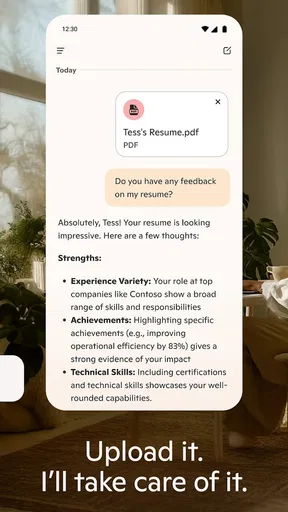
First off, setting up Microsoft Copilot is a breeze. Just download it from your app store, and you’re good to go. The interface is sleek and intuitive, which means you won’t be fumbling around trying to figure out how things work. Everything you need is right there at your fingertips.
Features That Stand Out
What really caught my attention is how seamlessly it integrates with other Microsoft apps. Whether you’re working on a Word document or organizing your Outlook calendar, Copilot is there to lend a hand. It’s like having all your tools in one toolbox. No more jumping from app to app!
Another feature that I think is super cool is the AI-driven suggestions. It’s almost like Copilot reads your mind, offering up suggestions before you even realize you need them. Need to schedule a meeting? Copilot’s got your back. Want to whip up a quick presentation? Yup, it’s got that covered too.
Putting those suggestions to work
I get the most from suggestions when I treat them as a draft to shape, not an instruction to follow. If I need a presentation, I would first ask for a clear structure, then check whether each section serves the audience and add examples only I can supply. For a meeting, I would confirm the actual time, attendees, and purpose before acting on a suggested plan. That small review step prevents a polished draft from quietly carrying a wrong assumption into my calendar or slides.
The same habit helps when a response is too broad. Rather than asking for everything at once, I narrow the next request: keep the same idea, make it shorter, or focus on one audience. This is a practical way to guide the conversation without needing to learn special commands. It also gives me a clearer point at which to stop iterating and finish the work myself.
Why You’ll Love It
Now, I gotta say, the real magic happens when you start customizing it to fit your workflow. You can tweak settings to prioritize tasks, set reminders, and even automate some of those pesky little tasks that eat up your time. It’s all about making your life easier, and who doesn’t want that?
And here’s the kicker – it’s designed for everyone. Whether you’re a busy professional, a student juggling multiple projects, or just someone looking to streamline their day-to-day activities, Copilot’s got something for you. Plus, it’s constantly updating with new features, so you’re always on the cutting edge.
Who benefits most—and who may not
I would recommend it to someone who regularly needs a quick first draft, a plain-language explanation, or a way to organize scattered thoughts. Students can use that kind of help to brainstorm an outline, then do the research and writing themselves. A busy professional might use it to get a routine email started, while keeping responsibility for the facts and final tone. These are modest uses, but they can remove the friction that makes small tasks linger.
It is less compelling if what you want is a dedicated task manager, a dependable calendar system, or a word processor with detailed control over a finished document. An assistant can help think through those jobs, but it is not automatically a substitute for the specialized app where the work is stored and managed. If you already have a simple routine that works, adding a conversational step may be unnecessary. I would also skip it for tasks where a wrong answer could cause real harm unless I can check the result with a trustworthy source.
How it compares with familiar productivity tools
Compared with a conventional notes or productivity app, Copilot’s strength is that I can describe a goal instead of manually arranging every part from scratch. The trade-off is control: a notes app preserves exactly what I enter, while an AI response may need correction and can miss context I have not explained. Compared with searching the web, a conversational answer can be easier to read, but I still need to verify time-sensitive claims rather than treating a summary as a source.
For people already using Microsoft tools, the familiar connection to Word and Outlook may make the idea feel natural, although I would not assume every action happens inside one place or without switching apps. I see the assistant as a layer for generating and refining ideas, while the dedicated Microsoft app remains the place to edit a document or manage a calendar. That distinction helps set realistic expectations and avoids confusing an AI suggestion with a completed workflow.
Availability, cost, and device fit
Microsoft Corporation publishes Copilot as a free productivity app, with optional in-app purchases listed from $9.99 to $199.99 per item. I would start with the free offering and decide whether any paid option is useful only after identifying a specific need; the presence of purchases does not mean every user must pay to try the app. It is rated for Everyone, and its average rating is 4.7 from around 2.1 million ratings, with about 29,000 written reviews and more than 50 million installs. Those figures suggest broad uptake, but popularity is not a guarantee that its style will suit every workflow.
The app was released on December 19, 2023, and version 30.0.431219001 requires Android 8.0 or later. If you are using an older Android device, that minimum is the practical point to check before planning around it. On a compatible phone, I would still keep prompts concise when working on the go: short requests are easier to review on a small screen than a long exchange that requires lots of scrolling. For extended writing or careful editing, a larger screen and the relevant document app may simply be more comfortable.
Making it dependable in daily use
I would not judge stability by how smooth one short conversation feels. In real use, a helpful recovery habit is to keep a copy of important wording in the document or notes app where it belongs, rather than relying on a chat as the sole home for finished work. If a response goes off track, restate the goal with the essential context instead of stacking several corrections onto a confusing exchange. This makes it easier to recover your direction and keep the useful parts.
Resource demands can vary with the device and the task, so I would avoid assuming that every phone will feel equally quick or that longer requests will behave like simple ones. If the app seems sluggish, I would first reduce the request to one clear job and give it another try; that also improves the quality of feedback. I would not use a performance hiccup as a reason to trust an incomplete answer or repeat sensitive details unnecessarily. For critical work, keeping a separate copy and a verification step matters more than squeezing out a few seconds.
Wrapping It Up
So, is Microsoft Copilot worth it? In my book, absolutely. It’s like having an extra pair of hands to help manage your workload. Sure, there’s always room for improvement, but Copilot is definitely on the right track. If you’re looking to boost your productivity and make your life a whole lot easier, give it a whirl. You might just wonder how you ever managed without it.
My more measured verdict is that it is worth trying if you want an approachable assistant for drafts, brainstorming, and everyday questions, and you are comfortable reviewing what it produces. Its conversational approach can make getting started easier, but it does not remove the work of checking facts, protecting private information, or finishing a task in the right app. I would not choose it as my only productivity tool, nor rely on it for an answer that must be exact without independent confirmation. Used as a flexible helper rather than an authority, it can earn a useful place in a daily routine.
Pros
- Seamlessly integrates with Microsoft Office.
- Enhances productivity with AI assistance.
- User-friendly interface and design.
- Regular updates improve functionality.
- Supports multiple languages efficiently.
Cons
- Requires a Microsoft 365 subscription.
- Heavy resource usage on older devices.
- Limited offline functionality.
- Occasional AI inaccuracies.
- Initial setup can be complex.
FAQs for Microsoft Copilot
What is Microsoft Copilot and what does it do?
Microsoft Copilot is an AI-powered tool designed to assist users by integrating seamlessly into Microsoft 365 apps like Word, Excel, and PowerPoint. It helps streamline workflows by offering smart suggestions, automating repetitive tasks, and providing insightful data analysis. This enhances productivity, allowing users to focus on more strategic tasks.
Is Microsoft Copilot available on both Android and iOS devices?
Yes, Microsoft Copilot is accessible on both Android and iOS platforms through Microsoft 365 mobile apps. Users can enjoy its features on smartphones and tablets, making it a versatile tool for managing tasks and projects on the go. However, some advanced features might be limited to desktop versions.
How does Microsoft Copilot ensure user data privacy and security?
Microsoft Copilot adheres to strict privacy and security protocols. It operates within Microsoft’s trusted cloud framework, ensuring compliance with industry standards and regulations. User data is kept confidential, and AI operations are designed to protect sensitive information while still delivering personalized and efficient assistance.
Can Microsoft Copilot be customized to fit individual needs?
Yes, Microsoft Copilot offers customization options to tailor its functionality to individual or organizational requirements. Users can adjust settings to focus on specific tasks or insights relevant to their workflow. This flexibility ensures that Copilot can effectively assist in various contexts, enhancing user experience.
What are the system requirements for using Microsoft Copilot on mobile devices?
To use Microsoft Copilot on mobile devices, users must have the latest version of the Microsoft 365 app installed on either Android or iOS. A stable internet connection is required to access AI features. It’s also recommended to have a device with updated operating systems to ensure optimal performance and compatibility.


